Making Telehealth Easier for Children with Autism, ADHD, and Other Developmental Differences: A Guide for Families
Simple tips to help your child feel comfortable and prepared ...

one phone call away
Joining your video visit with Elica Health Centers takes about two minutes and works on any iPhone or Android phone. You will join through Zoom, either in the free Zoom Workplace app or right in your phone’s web browser. Follow the six steps below; each one shows what your screen will look like.
Before your visit
• Use a phone with a working camera and microphone. Make sure it is charged or plugged in.
• Find a quiet, private, well-lit place. Your provider needs to see and hear you clearly.
• Check your connection. Wi-Fi works best. If you use mobile data, make sure you have a strong signal.
• Have your phone with you 10 minutes before your appointment. The video visit link arrives by text message 5–10 minutes before your scheduled time.
• Optional: install Zoom Workplace ahead of time. You can also join without the app (see Step 2).
About 5–10 minutes before your appointment, you will get a text message that says “Join your video visit with your provider. From Elica Health Centers.”
Open the message and tap the link inside it.
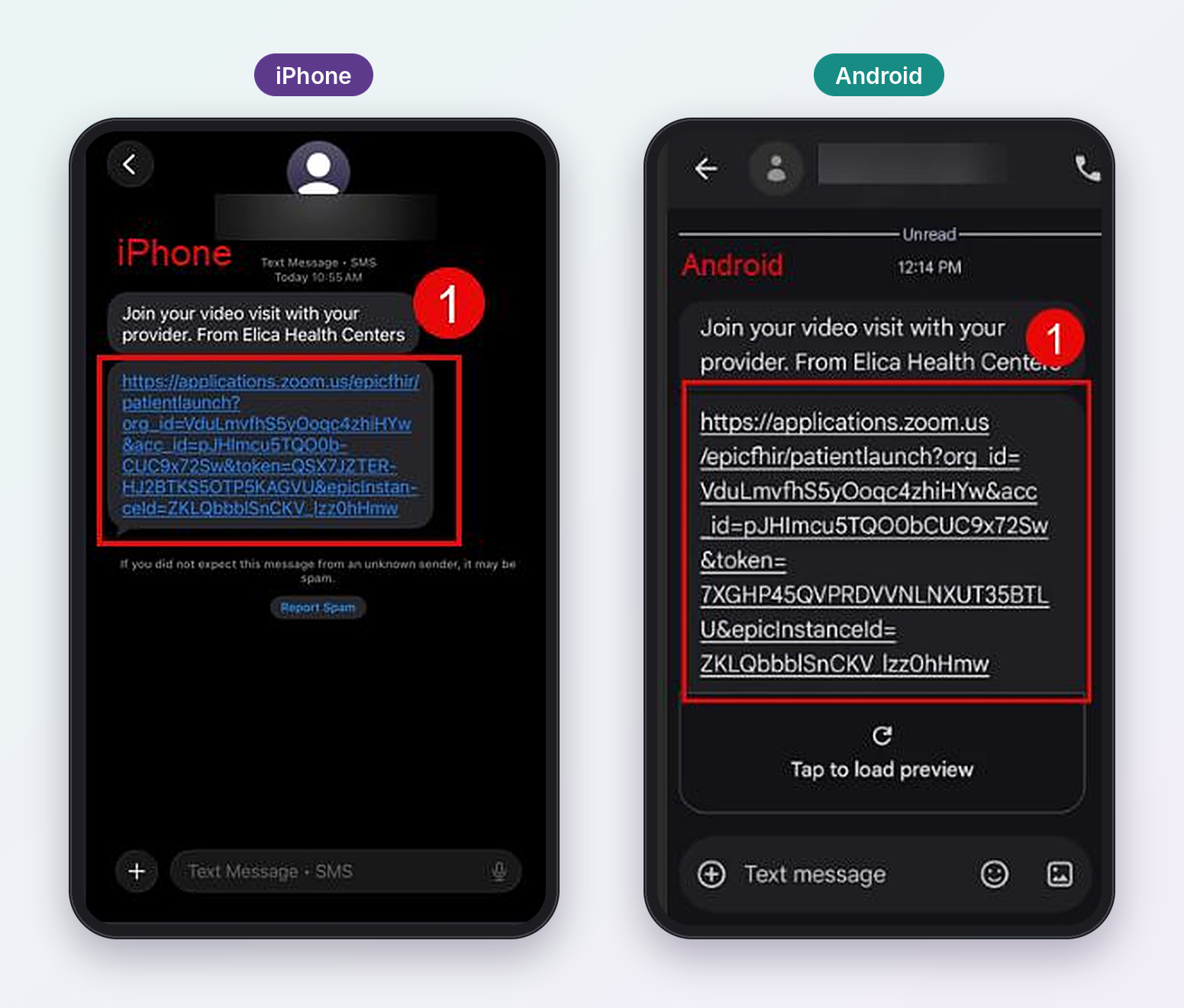
• The link starts with applications.zoom.us. This is the secure link for your visit.
• On Android, you may see Tap to load preview under the link. You do not need to tap it. Tap the link itself.
• Do not share this link with anyone. It is only for your appointment.
The Zoom Join meeting page opens. You have two choices:
• Join from App — opens the visit in the Zoom Workplace app. Choose this if the app is already on your phone.
• Join from browser — opens the visit in your web browser. Nothing to install. Some Zoom features are not available in the browser, but everything you need for your visit works.
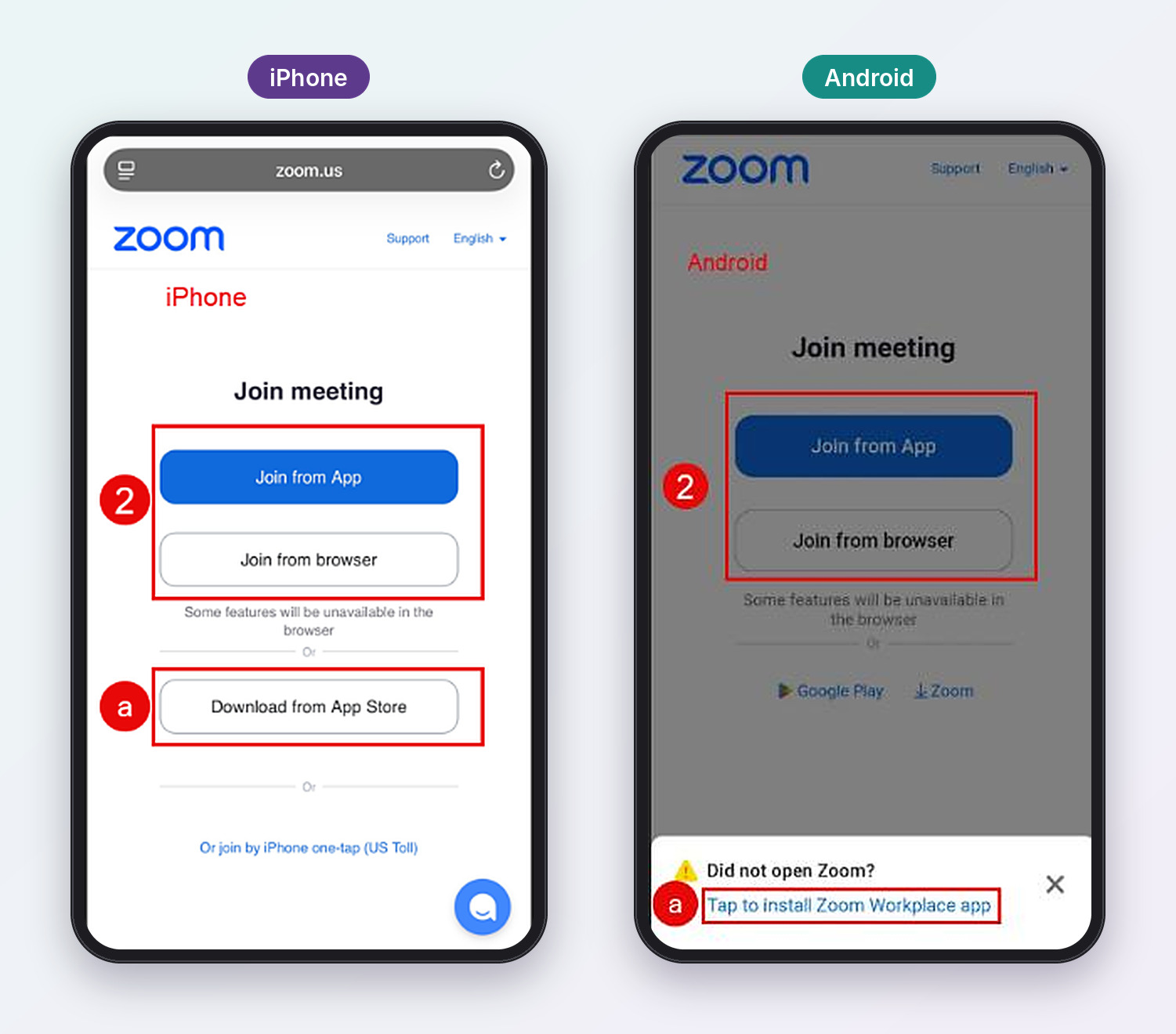
Don’t have the app and want to install it?
• iPhone: tap Download from App Store, install Zoom Workplace, then tap the link in your text message again.
• Android: tap Tap to install Zoom Workplace app at the bottom of the screen, install it, then tap the link in your text message again.
If you are short on time, choose Join from browser. It is the fastest way in.
Your phone will ask whether Zoom can use your camera and microphone. Your care team needs this to see and hear you during the visit.
• iPhone: tap Allow.
• Android: tap Turn on.
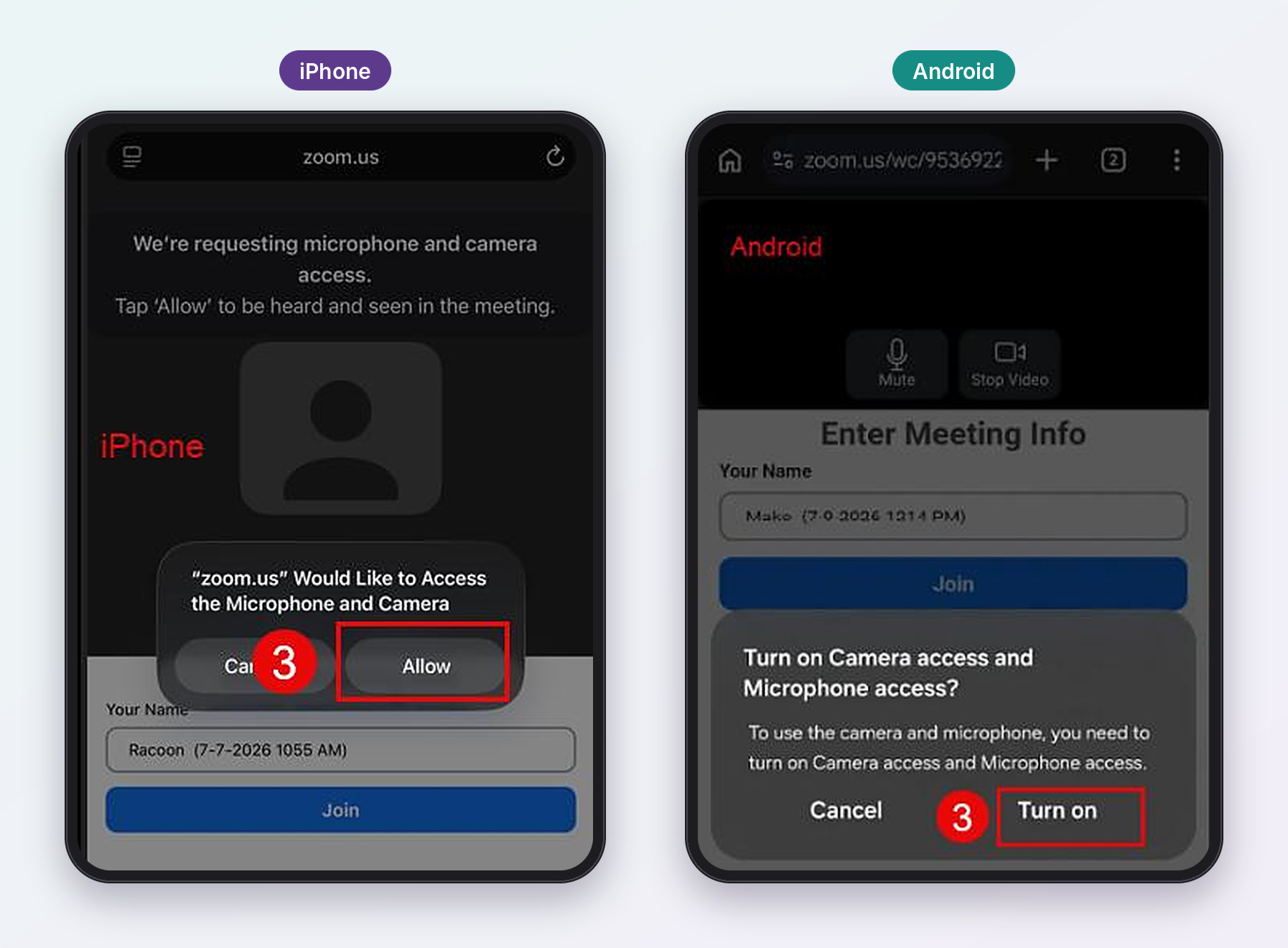
If you tapped Cancel or Don’t Allow by mistake, close the browser tab, tap the link in your text message again, and choose Allow or Turn on this time.
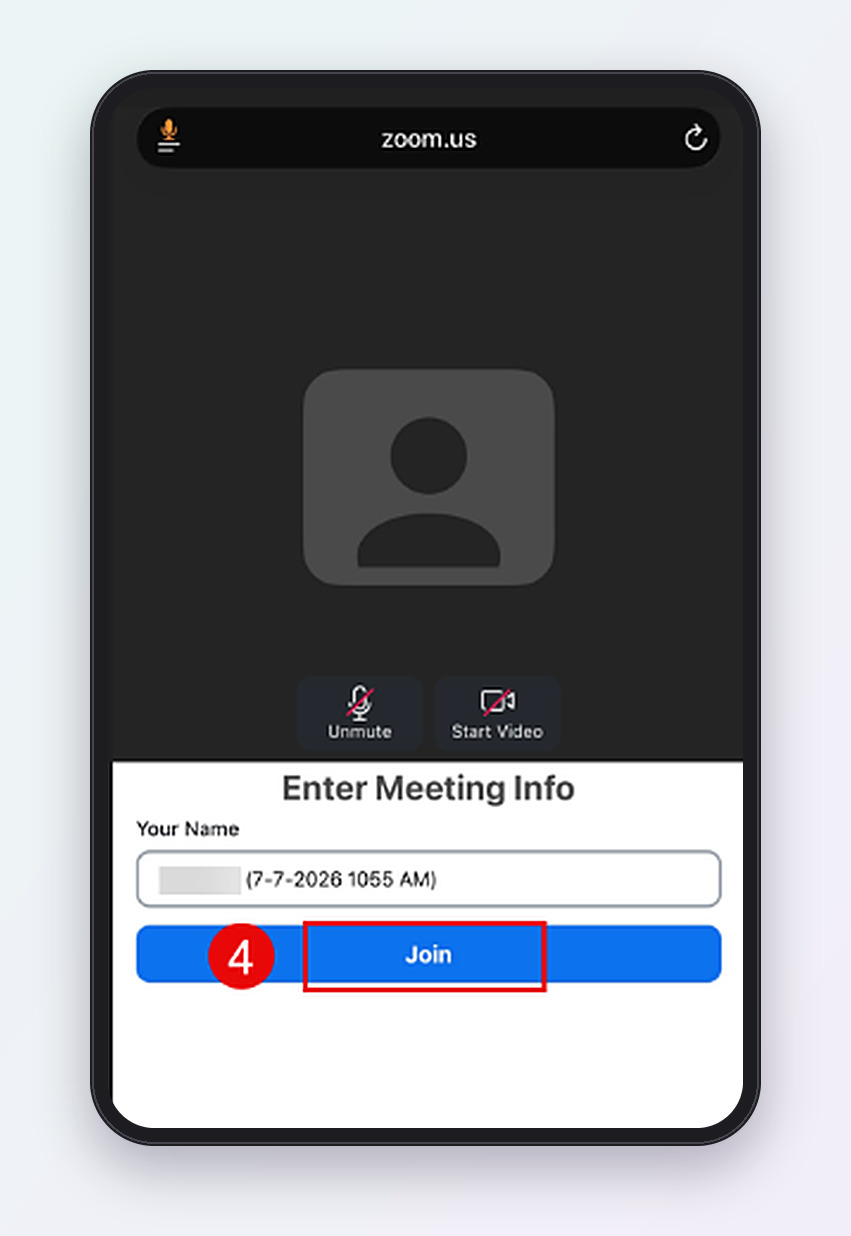
On the Enter Meeting Info screen, look at the Your Name box. Your name and appointment time are usually filled in for you. Make sure the name is yours, then tap the blue Join button.
.
If you see Waiting for the host to start the meeting, you have joined correctly. Stay on this screen and keep your phone nearby. Your care team will join shortly, and the visit will start on its own.
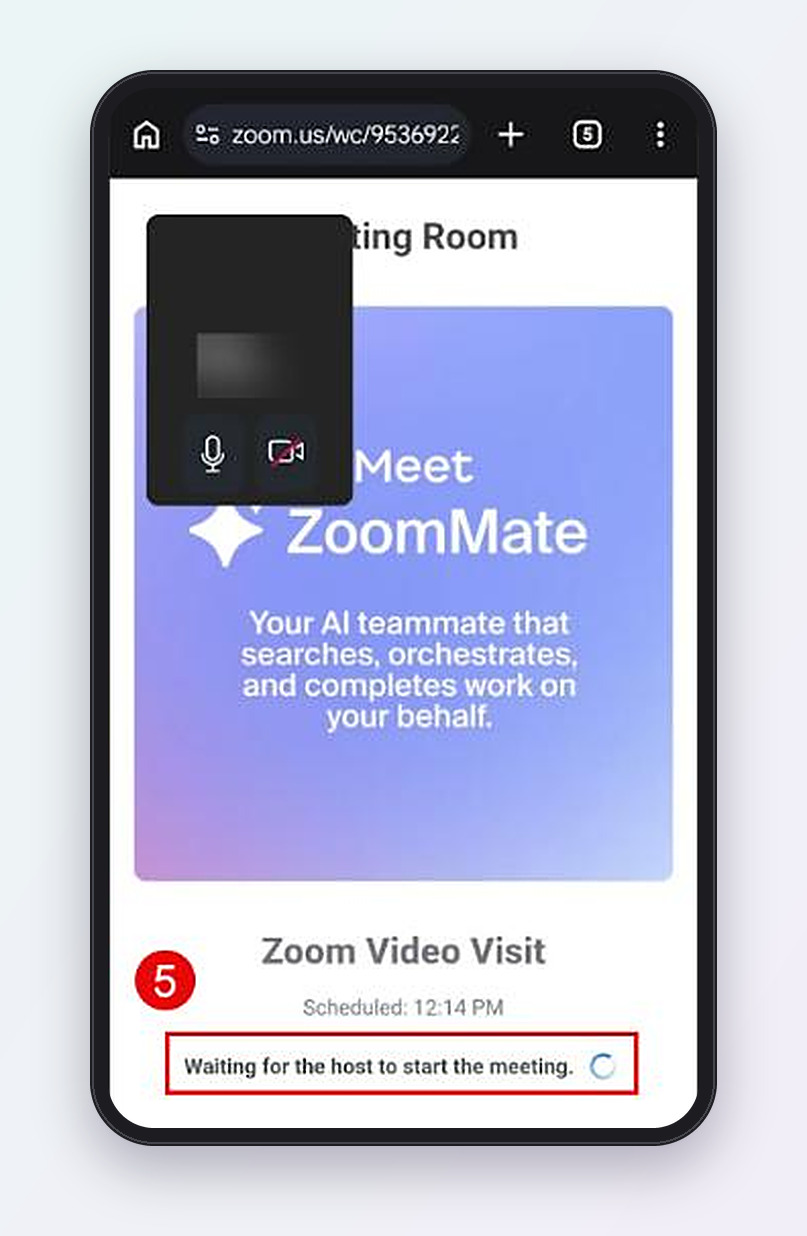
• Do not close the screen or tap the link again while you wait.
• The waiting room may show Zoom ads or messages. You can ignore them.
If your care team cannot hear or see you, look at the icons at the bottom of the screen:
• Microphone (labeled Unmute or Mute)
• Camera (labeled Video, Start Video or Stop Video)
A red line through an icon means it is turned off. Tap the icon once to turn it on.
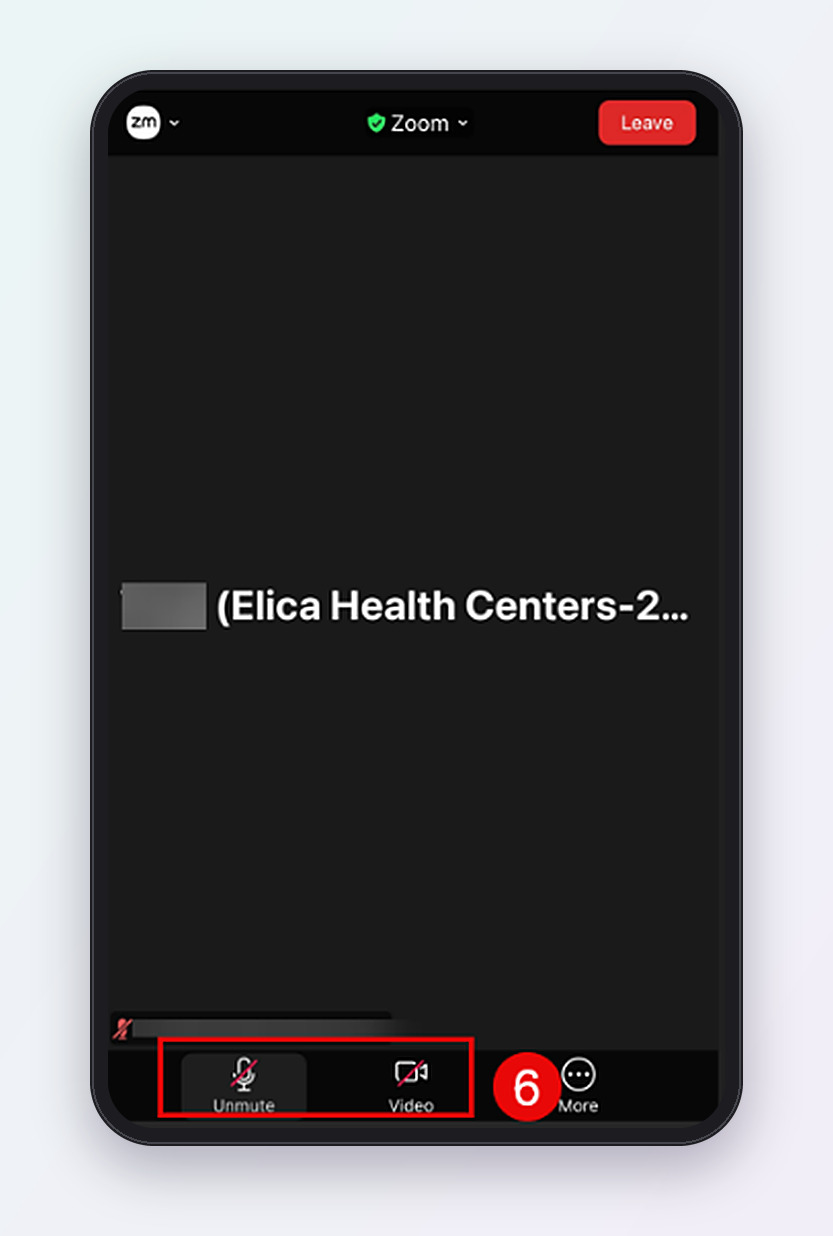
When your visit is over, tap the red Leave button in the top right corner.
Wait until 5 minutes before your appointment time. Check that the clinic has your correct mobile number. If no text arrives, call the clinic.
Copy the link and paste it into your web browser (Safari or Chrome). Check that you have Wi-Fi or mobile data.
Tap Join from browser. You do not need the app.
Tap the microphone icon so it has no red line. Turn up your phone’s volume and remove any headphones that are not connected.
Tap the camera icon so it has no red line. Make sure nothing is covering your camera.
Close the page and tap the link in your text again. If you are still not asked, turn on camera and microphone access for your browser or Zoom in your phone’s Settings.
Move closer to your Wi-Fi router, then tap the link in your text message again to rejoin.
Stay on the waiting screen and call the clinic to let them know you are connected.
Need help? Call Elica Health Centers at 916 454 2345. Press 2 for Russian or 3 for Spanish. If you speak another language, our Call Center representative will connect an interpreter to assist you.




EnglishSpanish
RussianDari
Open Payments Information
For informational purposes only, a link to the federal Centers for Medicare and Medicaid Services (CMS) Open Payments web page is provided here. The federal Physician Payments Sunshine Act requires that detailed information about payment and other payments of value worth over ten dollars ($10) from manufacturers of drugs, medical devices, and biologics to physicians and teaching hospitals be made available to the public.
The Open Payments database is a federal tool used to search payments made by drug and device companies to physicians and teaching hospitals. It can be found at https://openpaymentsdata.cms.gov







Copyright © 2026 | Elica Health Centers